Hosted sign-in page
The page that signs a person in to your organization, with every method that you turned on.
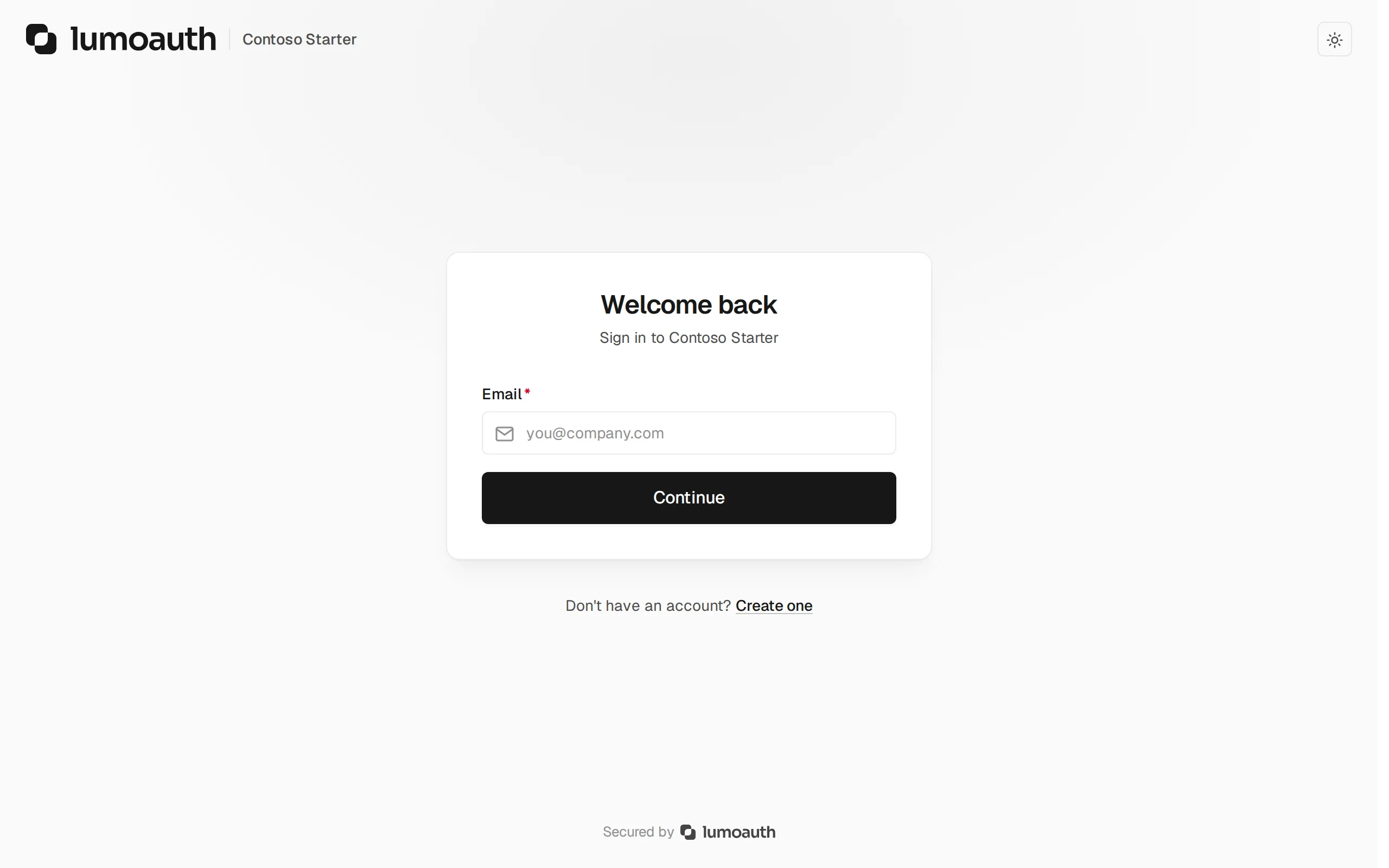
"Light" and "Dark" show an organization with no branding and a password as its only method. "Branded" shows an organization that set a logo, a colour and a photo, and turned on passkeys, magic links and three social providers.
What the page does
- It asks for the email address first. The next step then shows the methods that the organization offers: a passkey, a magic link, a password, or approval in the phone app.
- It offers social sign-in, with a button for each provider that you turned on.
- It routes by domain. A person whose email domain belongs to an enterprise connection goes to the identity provider of that company.
- It links to sign-up and to password reset, when you allow them.
- It speaks nine languages: English, Spanish, French, German, Portuguese (Brazil), Italian, Dutch, Japanese and Arabic. Arabic pages read from right to left.
What you can change
| Setting | What it changes | Docs |
|---|---|---|
| Sign-in methods | Which methods the second step offers. The methods belong to the organization: an application cannot add or remove one. | Authentication |
| Logo, welcome text and footer text | The words and the mark at the top and the bottom of the card. | Basic branding |
| Colours, background and layout | The button colour, a background colour or a photo, and where the card stands. | Colors and background |
| Languages and your wording | The languages that the page offers, and any sentence on it. | Languages and text |
| Legal links | The terms of service and privacy policy links in the footer. | Legal links |
| Custom CSS and custom HTML | The parts that the settings do not cover. Both pass through an allow-list. | Custom CSS |
| Branding for one application | A different look when a person arrives from that application. | Per-application branding |
| The "Secured by LumoAuth" badge | Whether the footer names LumoAuth. | Badge |
| Your own domain | The address of the page. | Custom domains |
The portal shows a preview before you publish a change.
When a person sees it
Every application of your organization signs people in on this one page, at /orgs/{orgId}/login. When an application sends the browser to the authorization endpoint and the person has no session, LumoAuth shows the page and then returns the person to the application.
Send a person to it
Your app does not link to the page. It starts the authorization code flow, and LumoAuth shows the page when it is needed. Three request parameters change what the person sees:
| Parameter | Effect |
|---|---|
login_hint | Fills in the email address. |
prompt=create | Opens the sign-up page in place of the sign-in page. |
ui_locales | Asks for a language. |
In a React app, SignIn and SignInButton start the flow for you.